

The Official
The Audira
User Guide
Everything you can do in Audira — reading, listening, points, clubs, and every little touch in between. Skim it, search it, or read it cover to cover.
Updated August 2026
Part I
Getting started
Two minutes here and the rest of the guide flies by.
Start here
How to use this guide
This is the whole of Audira, room by room — reading, listening, points, community, and clubs. You don’t have to read it in order.
Three ways to move through it:
- Jump around. Use the contents list (on the left, or “Jump to a section” on mobile) to leap straight to what you need.
- Search it. Type in the search box above the contents to filter every section by name.
- Read it through. A progress bar rides the top so you always know how far you’ve come.
Where these screens live
The big picture
What Audira is
Audira is a home for original serialized novels you can read and listen to — with full‑cast audio, a warm reader community, and book clubs that meet inside the story.
The app is organized into six tabs along the bottom — you’ll get to know each one:
- Home — the marquee: featured originals, what’s recommended, quick ways to browse.
- Library — your shelves: what you’re reading, your lists, your notes, your downloads.
- New — fresh releases and what’s coming soon.
- Community — the community feed, book talk, and clubs.
- Shop — your points, daily rewards, streak shields, and point packs.
- Settings — your account, membership, and every preference.
✦ Tip
Your account
Ways in — accounts & guest
You can start reading immediately. When you’re ready to keep your place across devices and unlock more, make a free account.
There are three ways to sign in — pick whichever you like:
- Continue with Apple or Continue with Google — one tap, nothing to remember.
- Email and password — toggle between Create account and Sign in on the same screen.
Prefer to look around first? Just browse as a guest — there’s no “guest” button, you’re simply not signed in yet. Tap the ✕ on the sign‑in screen to keep browsing.
A little welcome
Housekeeping
Passwords & confirming your email
Two small things that keep your account yours.
If you forget your password
- On the sign‑in screen, tap Forgot password and enter your email.
- We email you a 6‑digit code — type it in (there’s a “Resend code” link if it’s slow).
- Choose a new password. A live checklist shows the rules as you type, and you’re signed straight in.
Confirming your email
If you signed up with email, you’ll see a gentle Confirm your email card. Tap the button in the email we send (a preview alone never confirms it — that’s on purpose, to keep your account safe). Signed in with Apple or Google? You’re already confirmed.
Not now?
Good to know
Guest vs Free account vs Max
Here’s exactly what each level unlocks. Every book’s first three chapters are free to everyone, always.
| You can… | Guest | Free account | Audira Max |
|---|---|---|---|
| Read or listen to the first 3 chapters | ✓ | ✓ | ✓ |
| Browse, search, read the Journal | ✓ | ✓ | ✓ |
| 3 free chapter unlocks per book, per day | — | ✓ | ✓ |
| Earn, buy & spend points; skip the wait | — | ✓ | ✓ |
| Save books, lists, notes; sync across devices | — | ✓ | ✓ |
| Community, chapter talk & book clubs | — | ✓ | ✓ |
| Unlimited chapters — no points, no waiting | — | — | ✓ |
| Offline downloads & the gold app icon | — | — | ✓ (app) |
How unlocking works, in one line
Part II
Find your stories
Four ways to land on your next favorite.
The marquee
Home & the marquee
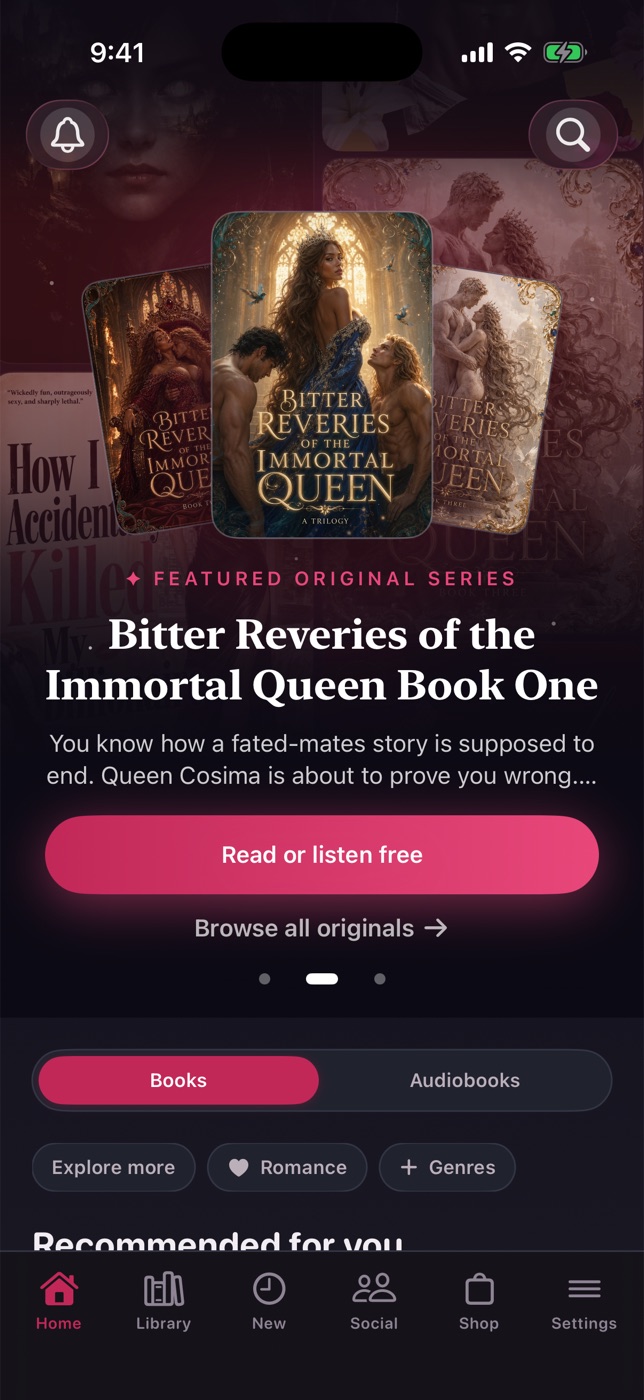
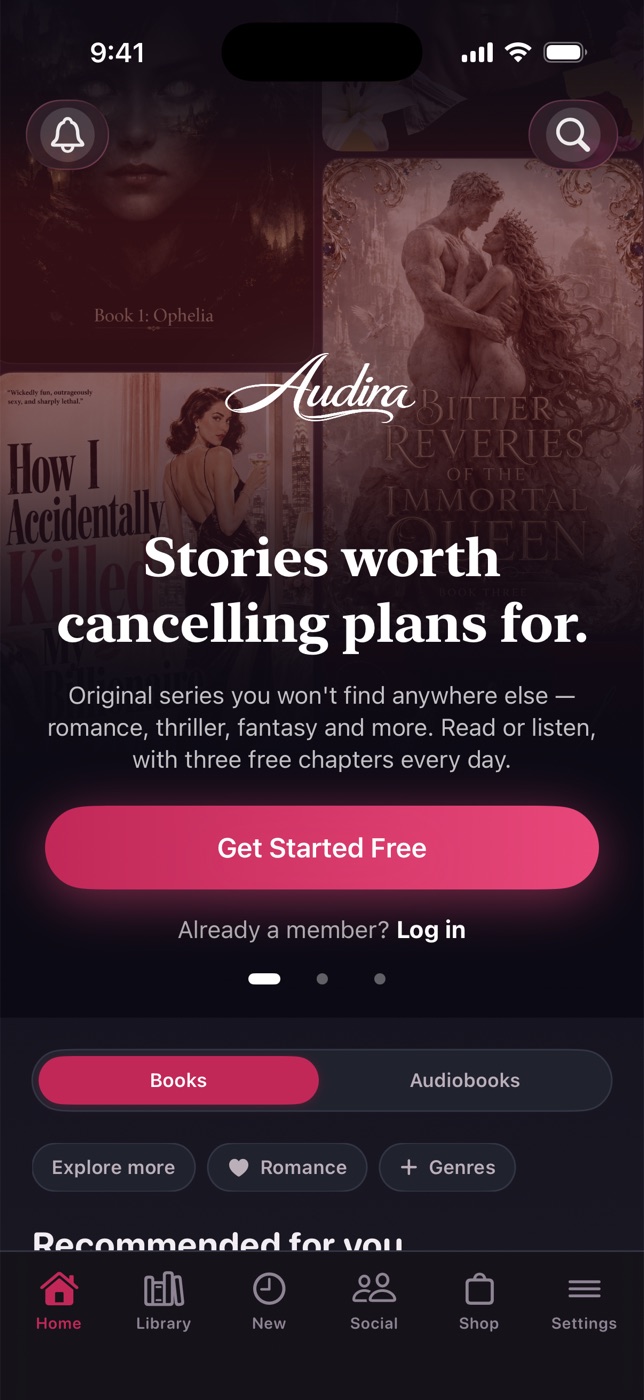
Home opens on a slow, cinematic carousel and everything you need to start reading tonight.
The hero up top rotates through three scenes — swipe it or tap the dots:
- A splash welcome,
- a featured original with a “Read or listen free” button,
- and an Audira Max invitation (which disappears once you’re a member).
Below it: a Books / Audiobooks filter, genre chips (tap “Explore more” for the full theme browser), your Continue card, a Recommended for you rail, and every original in one grid.
Two shortcuts always sit at the very top: the bell (your notifications) and the search magnifier.
Find anything
Search
One box finds a book by title, author, theme — even a half‑remembered mood.
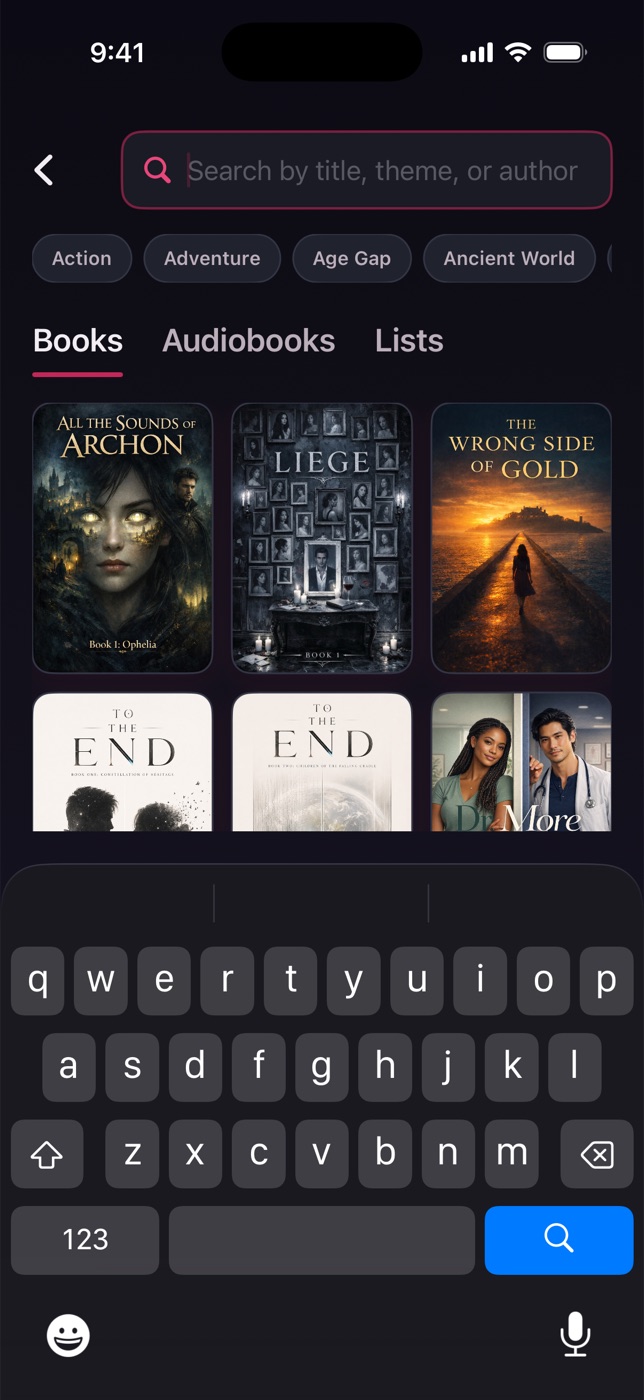
Tap the magnifier and type. Results update as you go. You can:
- Switch between Books, Audiobooks, and Lists,
- add theme filters as chips and stack as many as you like,
- and open a public list a fellow reader has curated, then save it to follow.
Browse by feel
Genres & themes
Not sure what you’re in the mood for? Wander by genre, trope, tone, or setting.
From Home, tap Genres or Explore more to open the full browser. Themes are grouped the way readers actually think — Relationship Type, Character Type, After Dark, Tropes, Tone, Setting, Time Period, and more. Tap any one to see every story that fits.
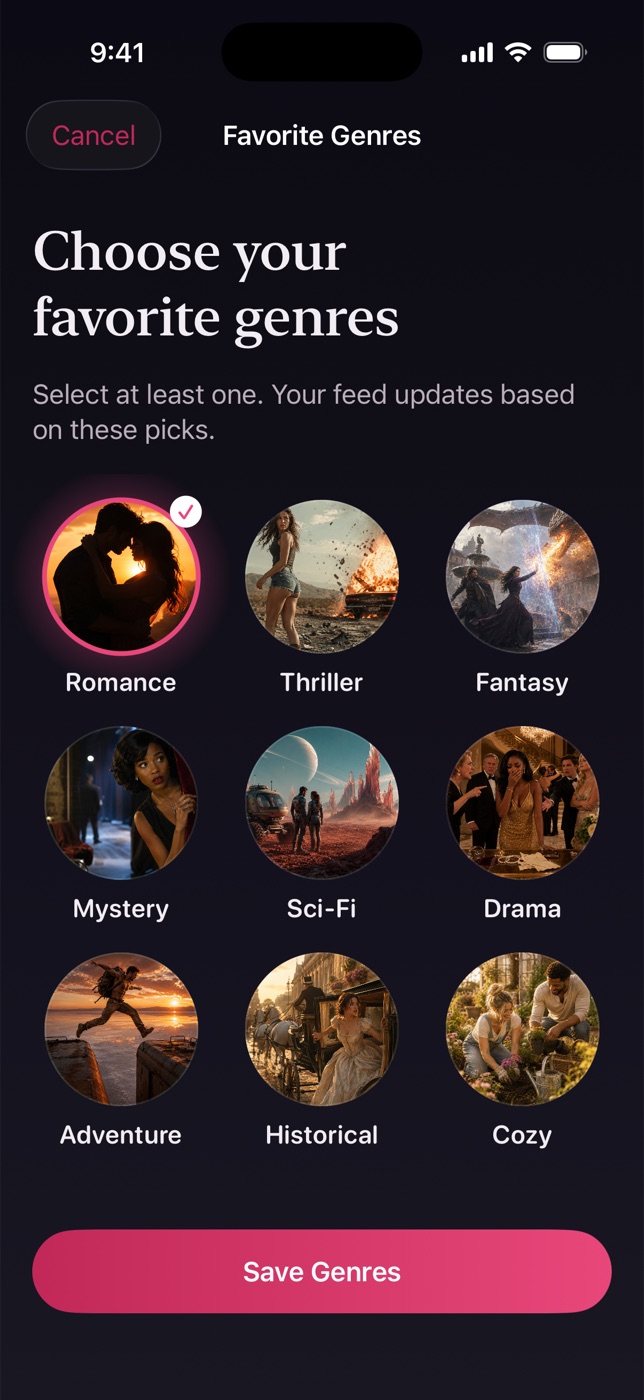
You can also set your Favorite Genres so your recommendations lean the way you do — pick as many bubbles as you like and tap Save.
Every story’s front door
The book page
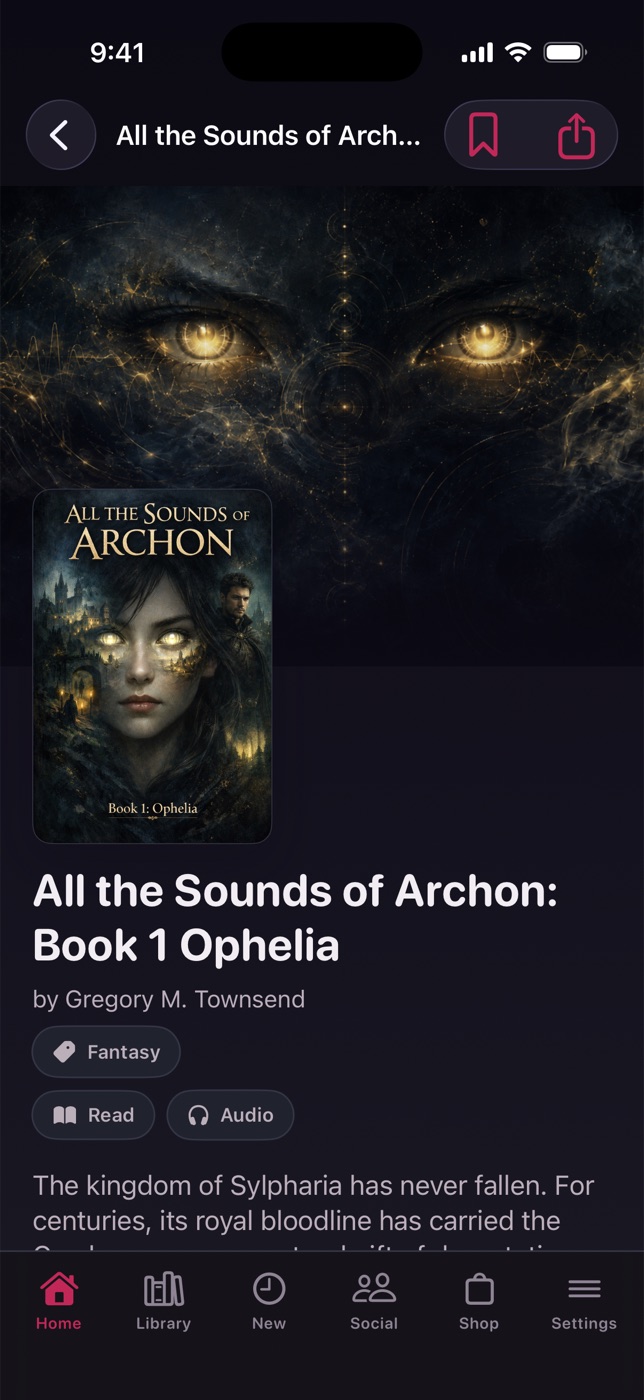
The book page is where you decide how to dive in — and where chapters unlock.
At the top: the cover (tap it for a full‑screen view, and to save it to your Photos), the synopsis, and pills telling you if there’s audio. Then:
- Start reading or Listen instead — and if you’ve been here before, Resume right where you left off.
- Save (the heart) drops it on your shelf; Share sends a link.
- An Chapters list shows each chapter’s status, and a Clubs reading this shelf if a book club is on it.
Unlocking a chapter
Part III
Reading
The reader is built to disappear so the story doesn’t.
The page
The Reader
Open a chapter and the world falls away — just the words, the way you like them.
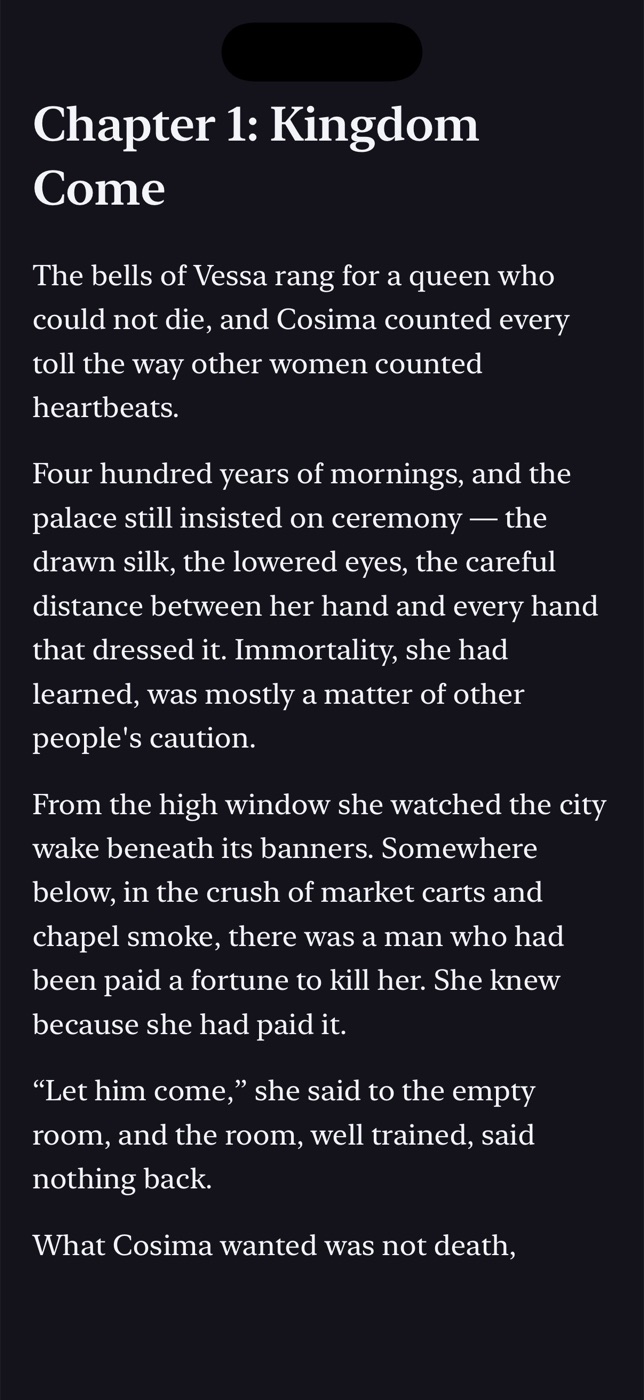
The reader is immersive: the bars fade as you read and come back with a tap in the middle of the page. Choose how pages move in settings:
- Paged — swipe, or tap the left/right edges to turn.
- Scroll — one flowing column.
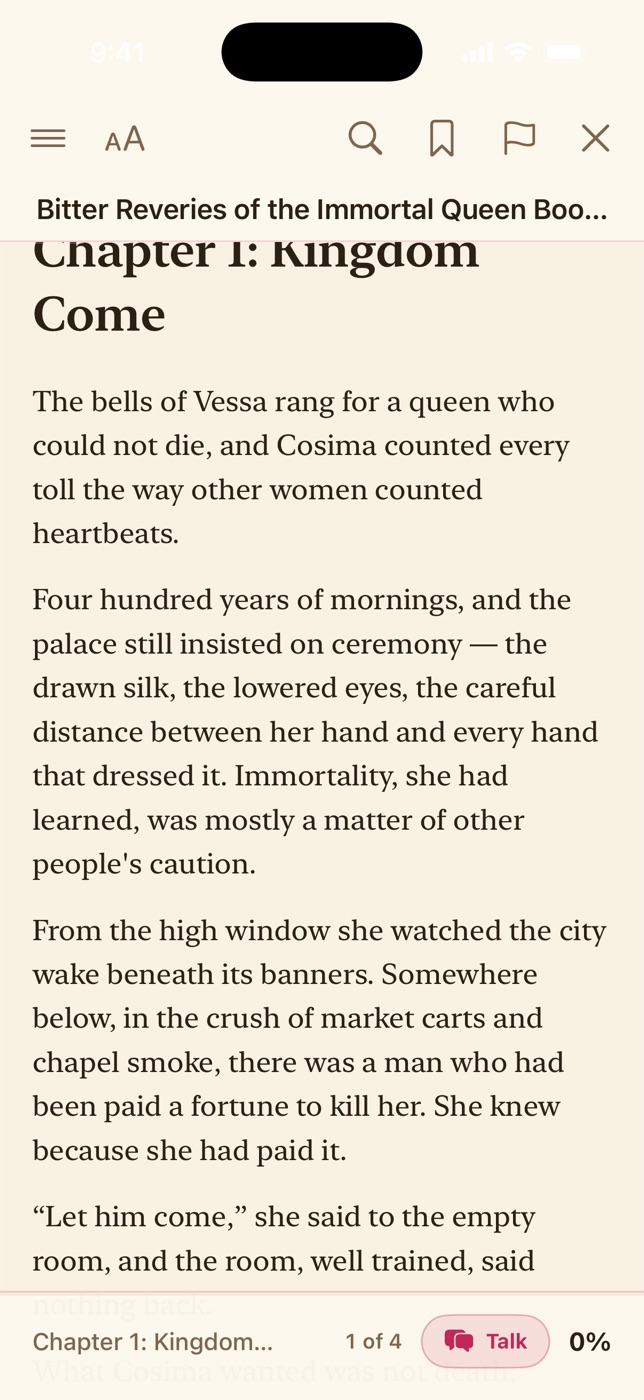
The top bar holds the chapter menu, appearance, search, and your marks; the bottom shows your place and a Talk chip for the chapter’s conversation. Your spot is always saved, and follows you to your other devices.
Make it yours
Themes & appearance
Six page themes and every knob you’d want — set them once and every book remembers.
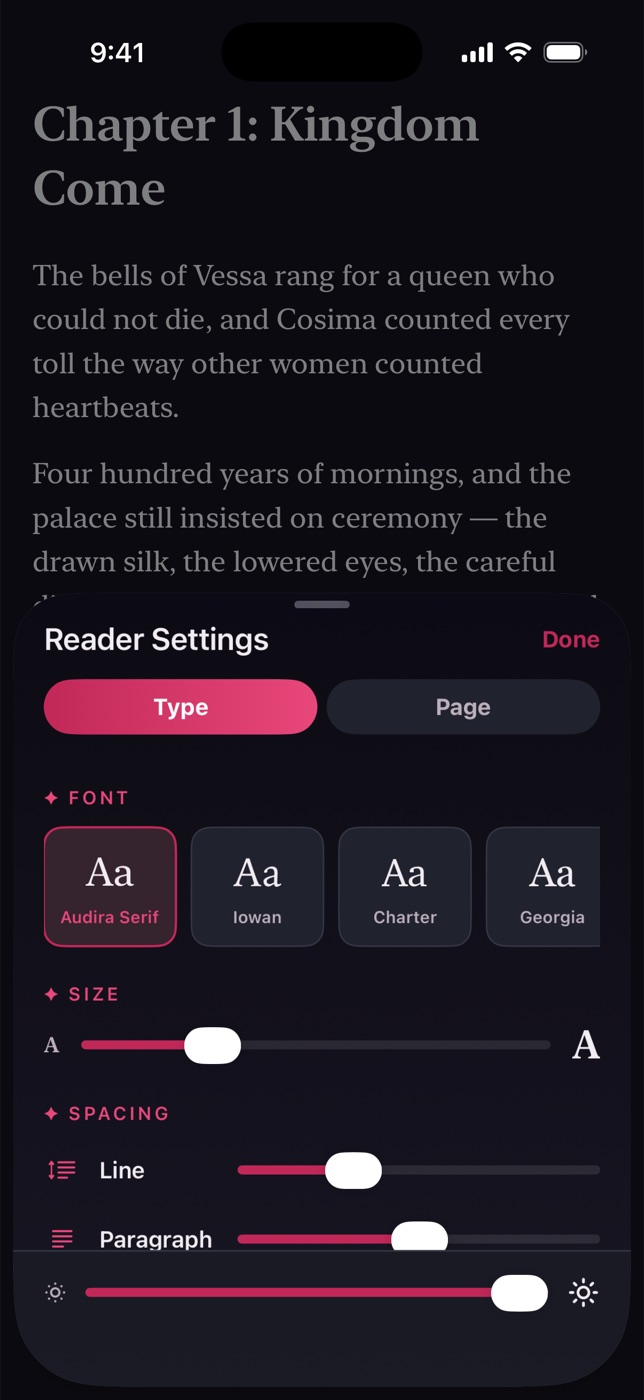
Tap Aa in the reader to open appearance. Two tabs and a brightness slider:
- Type — font, size, and spacing (line, paragraph, and letter).
- Page — the six themes (ClassicWarmMintNightInkRose Dusk), page‑turn style, alignment, and margins.
Prefer a clean slate? Reset to Audira defaults is right there.
✦ Tip
The Rose Quill
Selecting text & your marks
Press and hold a line and a rose bar rises — Audira’s own way to keep the moments that get you.
From that bar you can:
- Highlight in one of four tints — RoseEmberVioletGold,
- add a Note,
- Quote a passage into a book club,
- Search for it in the book, or Look up a word in the Lexicon.
Tap any marked passage later to edit its tint or note. Every highlight and note across every book gathers in My Notes (in your Library), and tapping one jumps you back to that exact spot.
Why it feels different
Tap a word
The Lexicon
Meet a word you don’t know? Look it up without leaving the page.
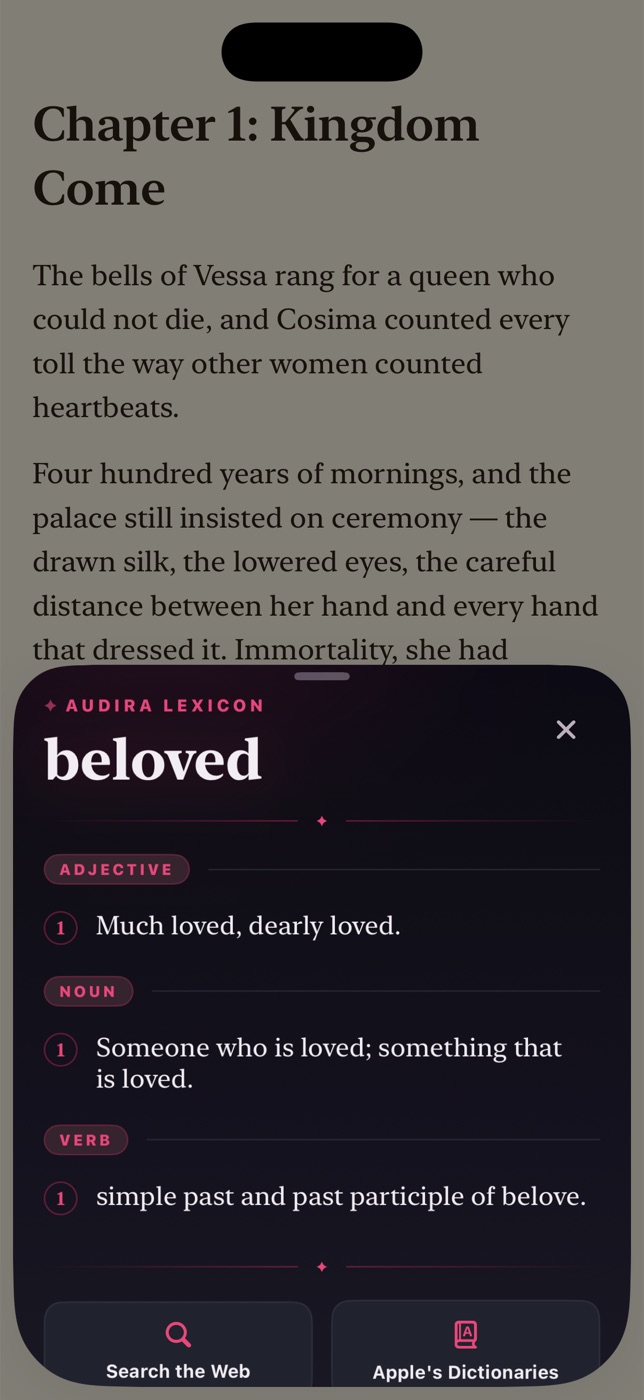
Select a word and choose Look up. A house‑styled dictionary sheet slides up with the senses and examples — plus quick links to Search the Web or Apple’s Dictionaries if you want to go deeper. It’s open to everyone, guests included.
Part IV
Listening
Full‑cast audio, made for long nights and long drives.
Now Playing
The player
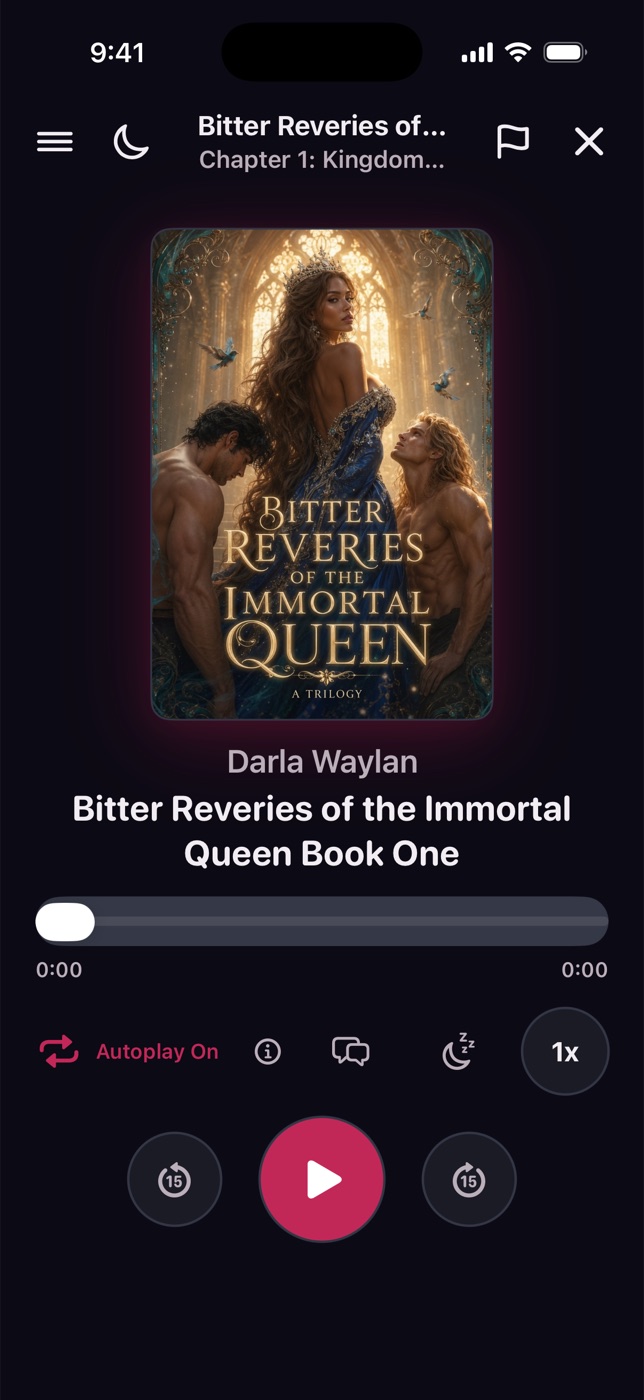
Every audiobook opens into a player built for listening, not fiddling.
You get the essentials and the extras:
- Play / pause, skip 15 seconds back and forward, and a scrubber with times.
- Playback speed — tap to cycle from 0.75× up to 2×.
- Autoplay — roll straight into the next chapter, hands‑free.
- A chapter menu, a light/dark toggle, and the chapter’s Talk.
It keeps playing in the background and on your lock screen, and a mini‑player rides along the bottom of the app so you can wander and keep listening.
Drift off
Sleep timer & autoplay
Fall asleep to a chapter without losing your place.
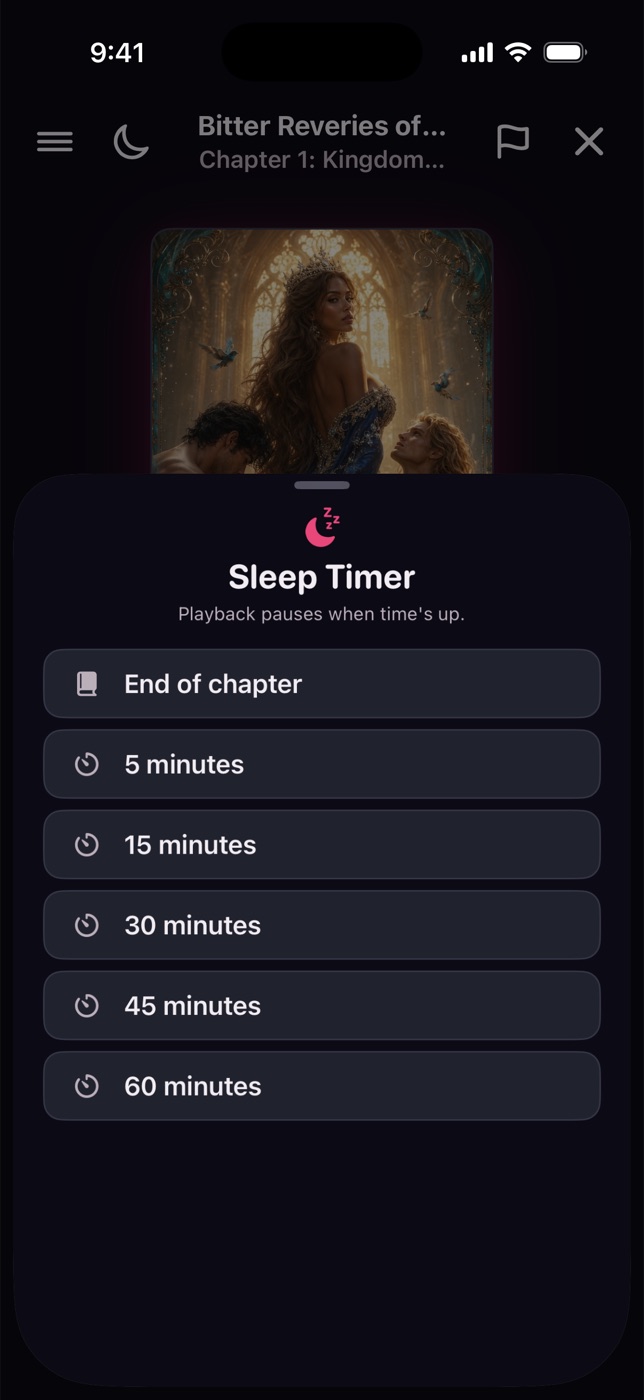
Open the sleep timer and choose End of chapter or a set number of minutes. A little countdown shows how long’s left; playback fades out when it’s up. Turn it off anytime.
Autoplay is its own switch on the player — leave it on to keep the story going chapter to chapter, or off to stop at the end of each one.
Take it with you
Downloads & offline
Audira Max members can pull whole books — text and full‑cast audio — onto the device for planes, subways, and dead zones.
From a book page or the player, choose Download — everything, text only, or add the audiobook. In the Downloads screen (Library or Settings) you can:
- Flip on Wi‑Fi only, or allow cellular per book,
- Pause / resume a download and see its size,
- and remove a download (your reading progress always stays).
✦ A Max perk
Part V
Points, streaks & the Shop
Read a little every day and doors keep opening.
The Shop tab
Points & daily rewards
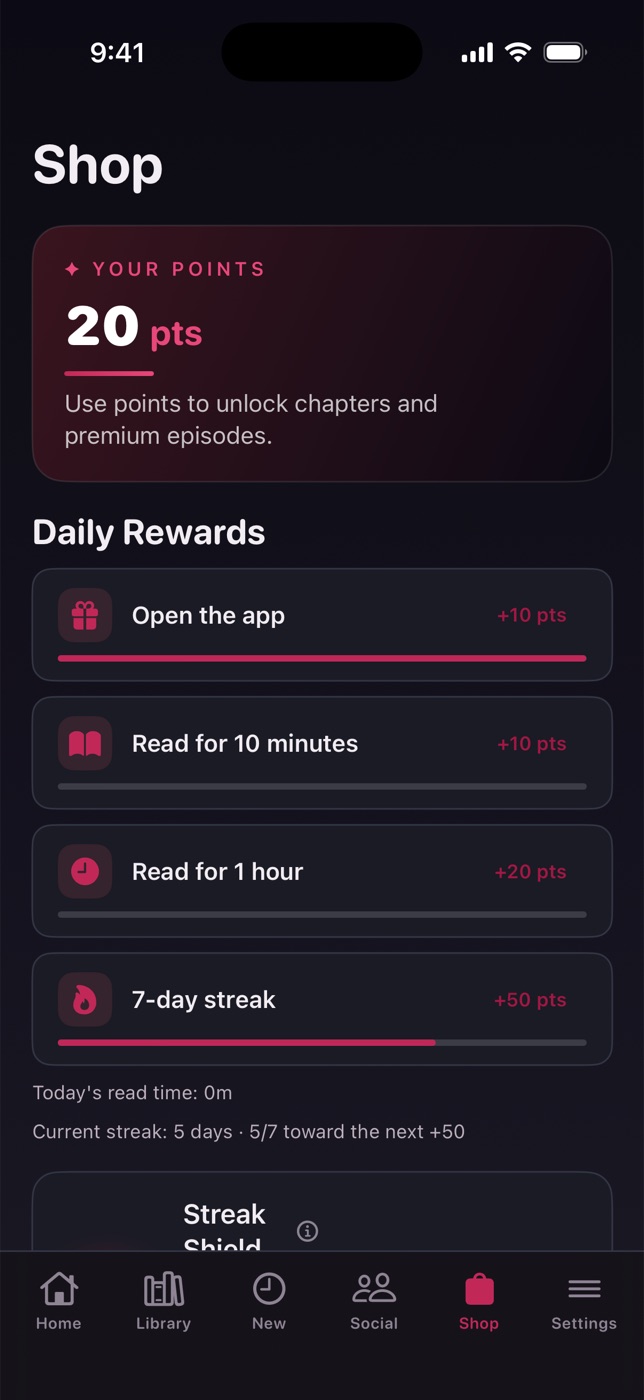
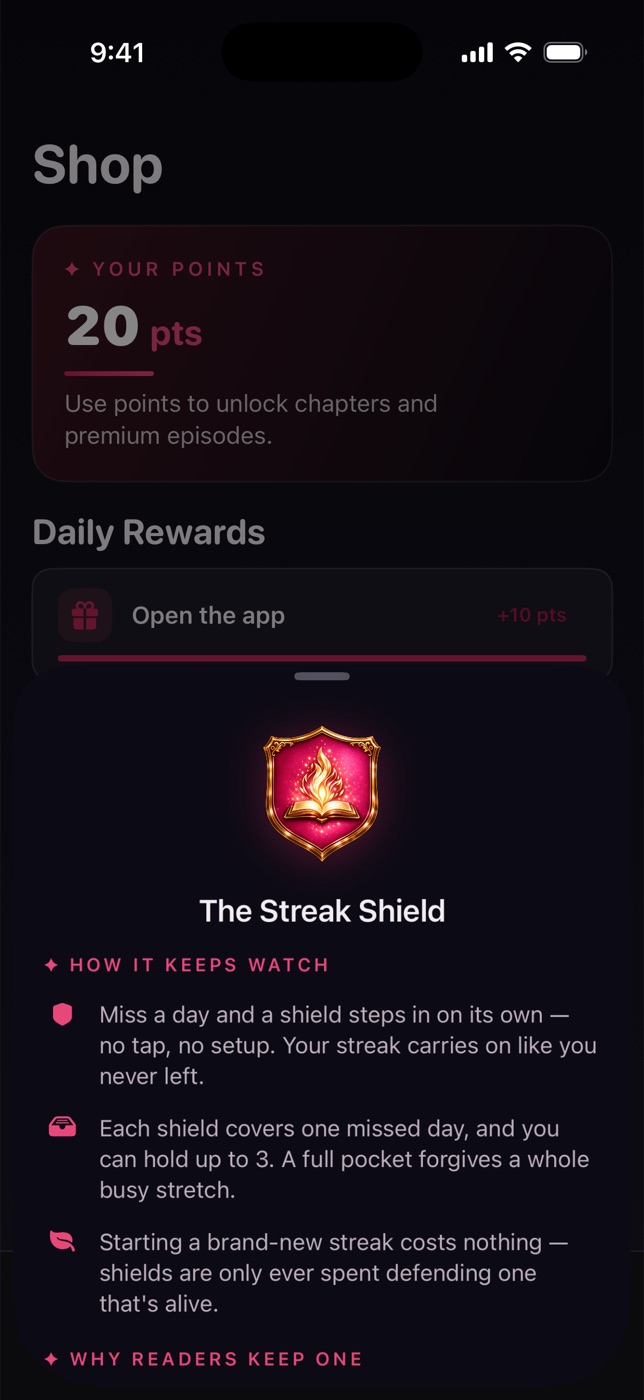
Points are Audira’s little keys — earn them by reading, spend them to skip a wait. They never expire.
The Shop tab shows your balance and today’s rewards:
- +10 for opening the app today,
- +10 for reading ten minutes,
- +20 for reading an hour,
- and a 7‑day streak bonus on top.
Need more now? Grab a point pack — Starter, Reader (best value), or Binge — right from the Shop.
Protect the run
Streaks & Streak Shields
Miss a day and your streak resets — unless a shield is standing guard.
A Streak Shield is quiet insurance. Hold a few, and if you miss a day, one steps in automatically — no tap, no setup — and your streak carries on like you never left. Buy them with points in the Shop, up to your cap.
- Shields protect both your 7‑day reward and the milestone 100‑Day badge.
- When one saves you, you’ll get a warm “Your shield stood guard” note in your inbox.
Bring a friend
Invite friends
Reading’s better shared — and it earns you both points.
In the Shop, open Invite friends to get your personal link and code. Share it however you like. Your friend gets starter points for joining, and once they’ve read a few chapters, points land in your wallet too. The card tracks who’s joined and who’s still reading.
Part VI
Audira Max
For when you never want to see a timer again.
Everything unlocked
Audira Max
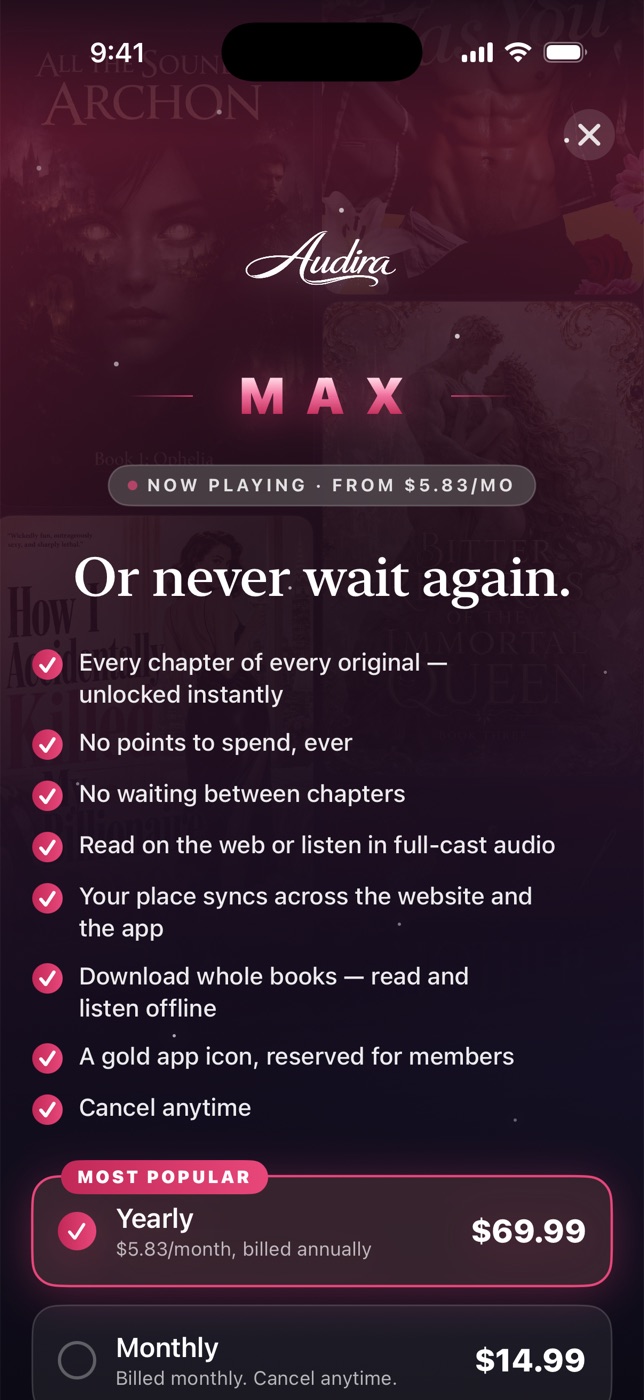
One membership opens every chapter of every original — no points, no waiting — across the app and the web.
Max includes:
- Every chapter, unlocked instantly. No points, no five‑hour waits.
- Offline downloads — whole books, including full‑cast audio.
- A rose‑gold ✦ star and ring on your community profile, and a gold app icon.
- Your place syncs everywhere you read or listen.
Choose Monthly or Yearly (the best value), subscribe right in the app, and manage or cancel anytime. On the app your subscription is managed in the App Store or Google Play, depending on your device; if you subscribed on the web, you’ll manage billing on audirabook.com.
✦ Tip
Part VII
Your library
Shelves, lists, and every line you’ve marked.
Your shelves
Library & lists
Everything you’re reading and everything you’ve saved, in one place.
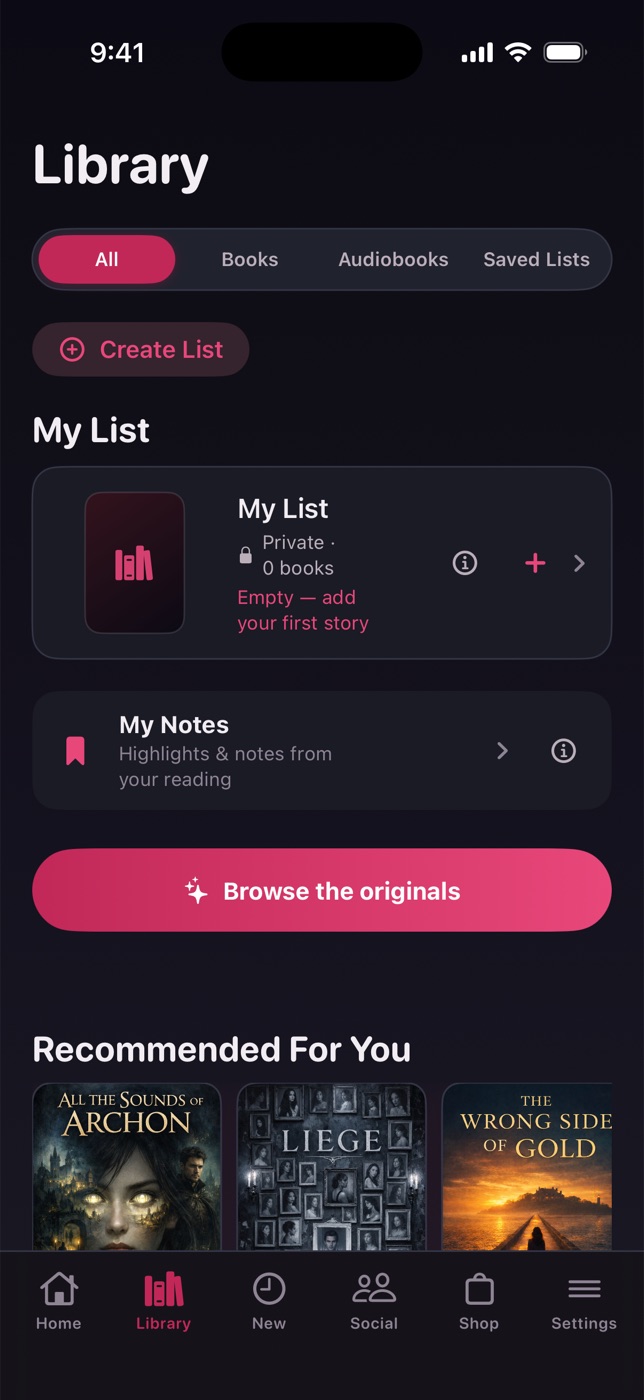
The Library tab keeps your Continue reading rail up top, then your books and lists. You can:
- Filter by All / Books / Audiobooks / Saved Lists,
- Create a list — name it, give it a genre and themes, and add books,
- make a list public so other readers can follow it,
- and follow other readers’ public lists from your Saved shelf.
Your built‑in My List is always private, and everything here syncs with the website.
Every line you kept
Your notes
Open My Notes for a running collection of every highlight and note you’ve made — across every book.
Filter by tint or by notes‑only, and tap any mark to jump straight back to that passage in the story. It’s the fastest way back to the line that undid you.
Part VIII
Community
Readers, out loud — with spoilers kept where they belong.
The Community tab
The community feed
Talk about what you’re reading with people who are reading it too.
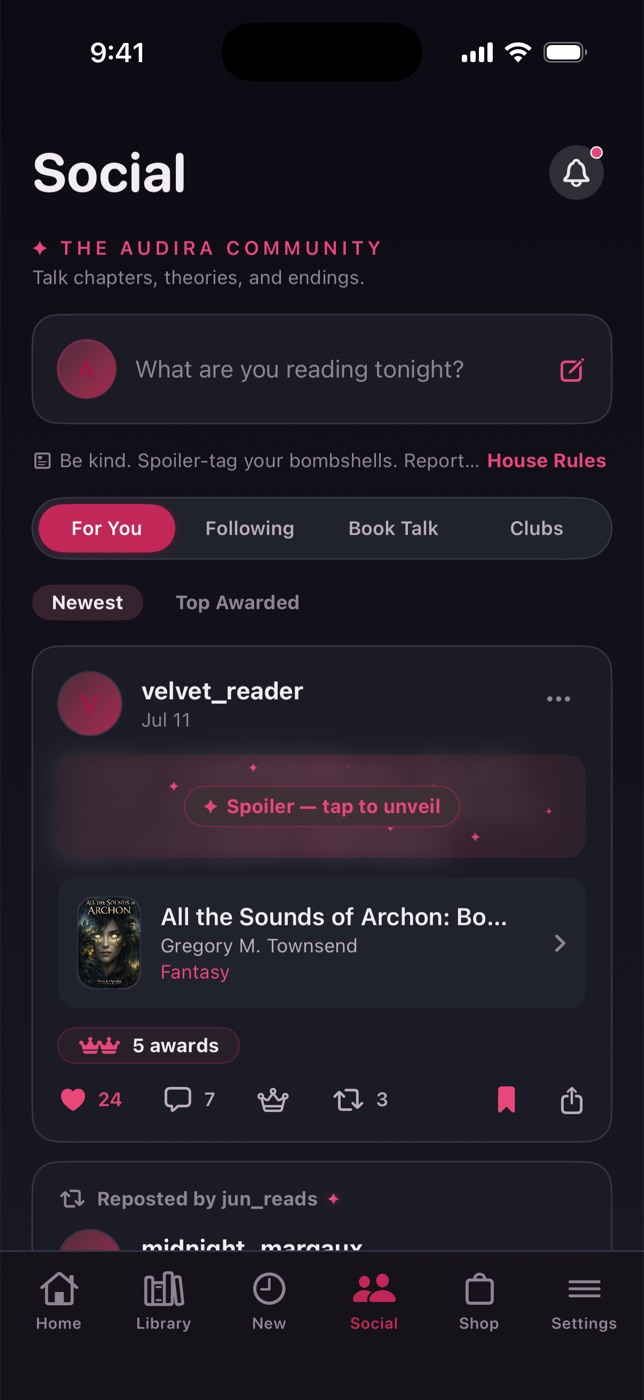
The Community tab has four rooms:
- For You (sort by Newest or Top Awarded) and Following,
- Book Talk — per‑chapter threads (peeks stay blurred if you’re behind, so nothing spoils),
- and Clubs.
Post from the composer — up to 600 characters, attach a book, and flip on a spoiler shield if you’re about to say something. On any post you can like, comment, award a crown, repost, save, share, or report.
Talk, chapter by chapter
Chapter Talk
Every chapter has its own conversation, tucked right into the reader and the player.
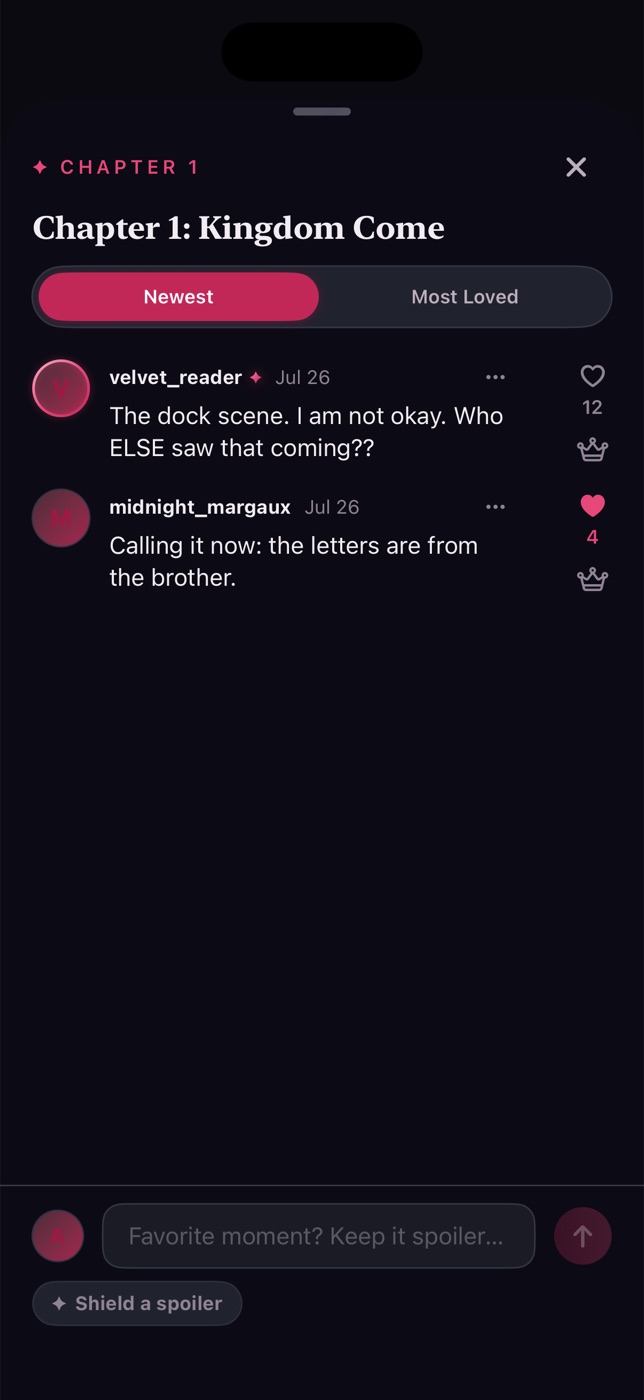
Tap Talk while reading or listening to open that chapter’s thread. Sort by Newest or Most Loved, post with a spoiler shield, and give a comment a like or a crown. Haven’t reached a chapter yet? Its talk stays gently sealed until you do.
Readers you’ll meet
Profiles & following
Every avatar is a door — tap one anywhere and it opens that reader’s profile.
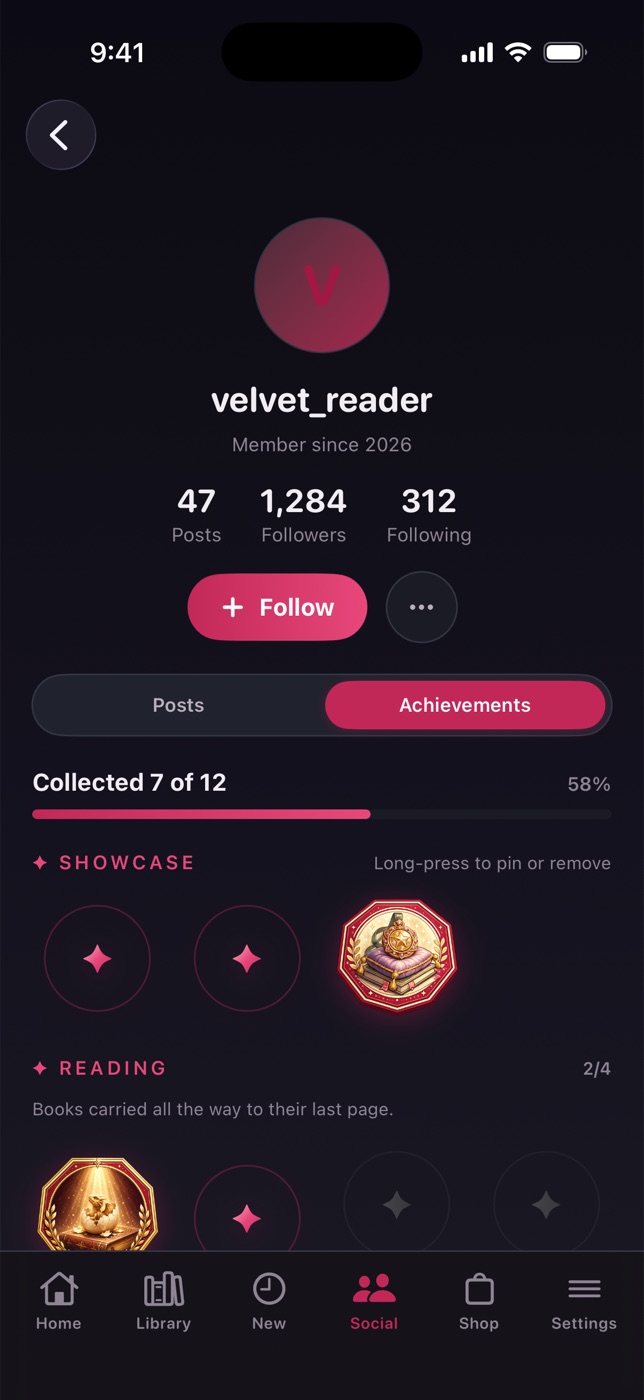
A profile shows their posts, their followers and following, their achievements, and how long they’ve been a member. Tap Follow to see them in your Following feed. Max members wear a rose‑gold ✦ and a ring. On your own profile you also get Comments and Saved tabs, just for you.
Earn your stars
Achievements
Read, comment, keep a streak, found a club — Audira notices, and hands you a badge for it.
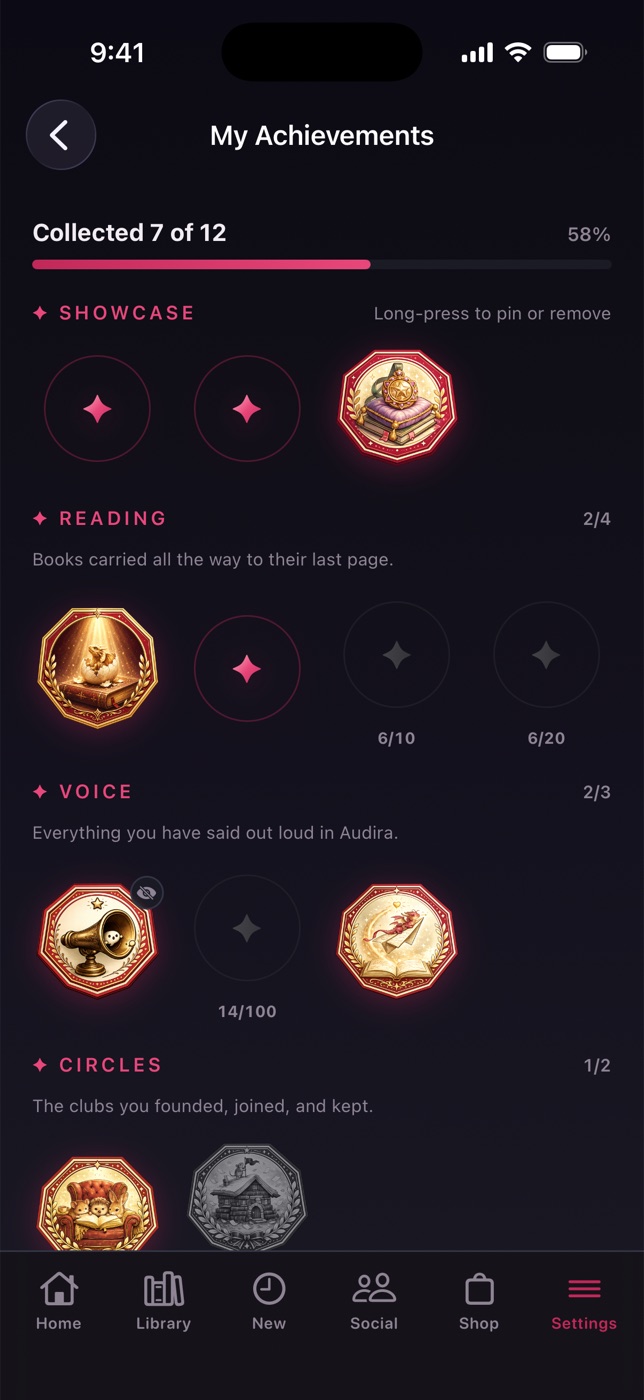
Your achievement wall groups badges into families. Earned ones glow; locked ones show what it takes and how close you are. You can:
- Showcase up to three favorites at the top of your profile,
- tap any badge for its story and lore,
- and hide a badge you’d rather not display.
Find your wall on your profile’s Achievements tab, or from Settings → My Achievements.
Your peace
Blocking
If someone’s not adding to your night, block them — cleanly, and both ways.
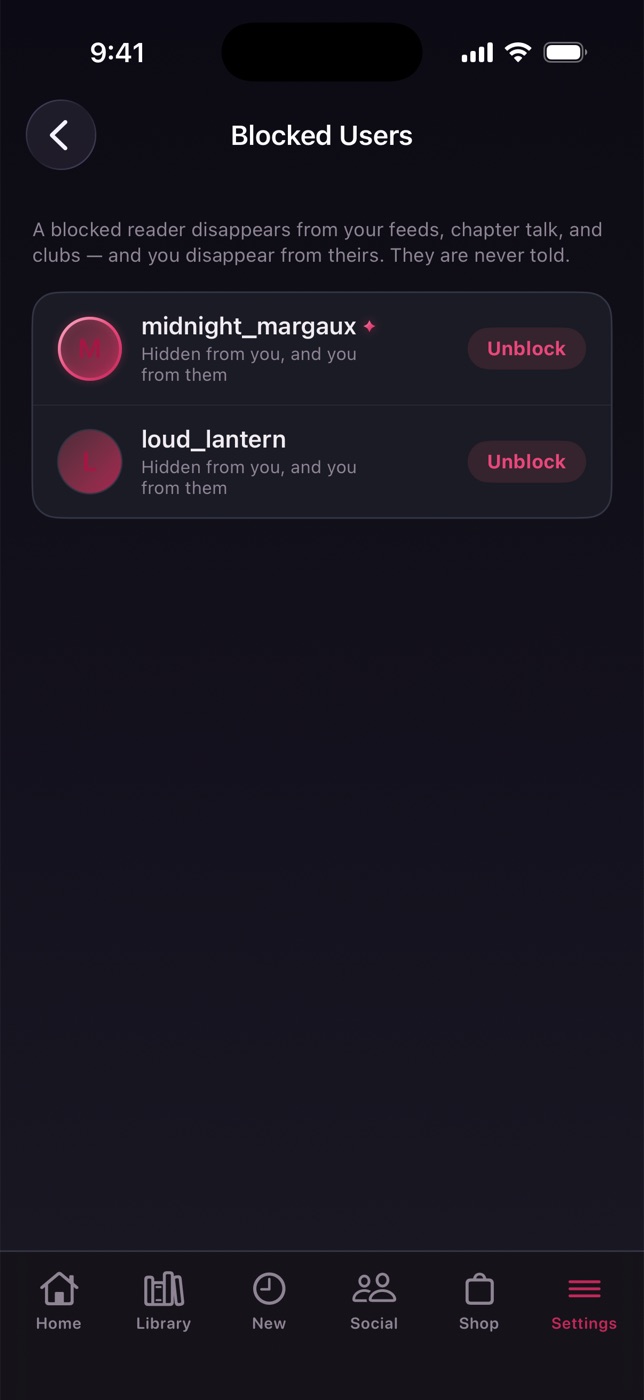
Block from any profile or post (the ⋯ menu). A block hides the two of you from each other — feeds, chapter talk, and clubs — and no one is ever told. Manage everyone you’ve blocked in Settings → Blocked Users, where a tap unblocks.
Part IX
Book Clubs
Reading together, at a shared pace, with rooms that open as you go.
Find your circle
Browse & join a club
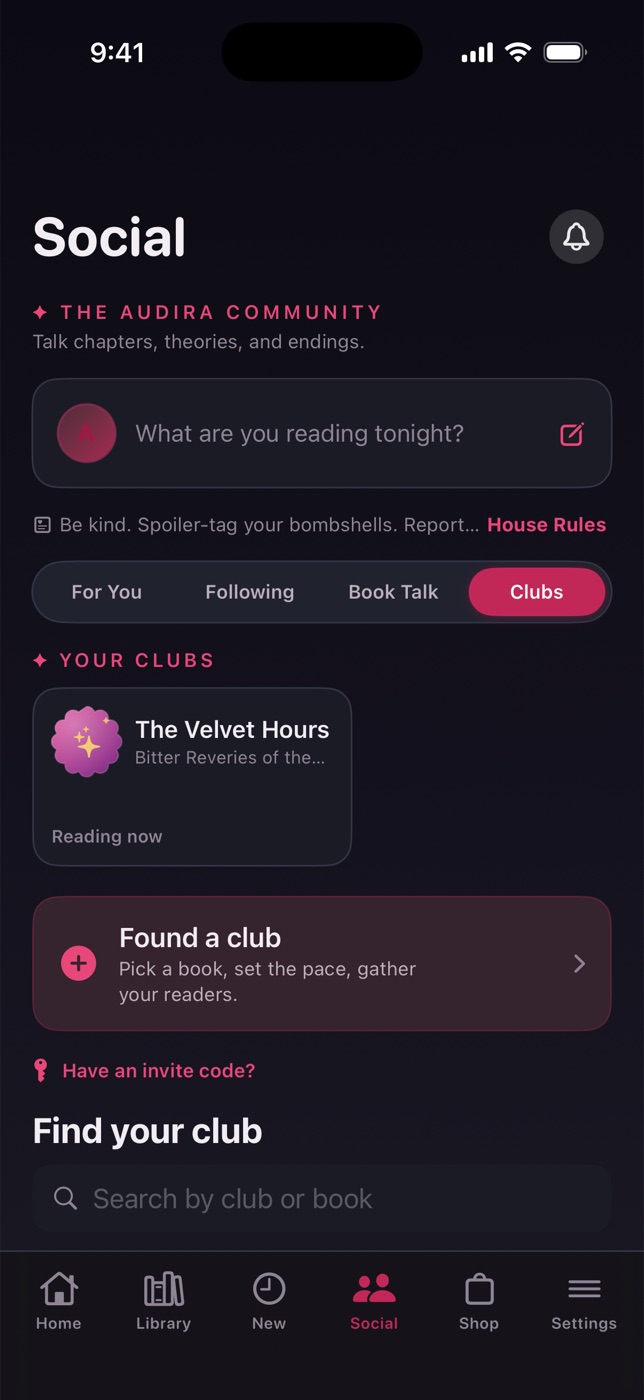
A book club reads one story together on a schedule — and talks about it in rooms that unlock as you reach them.
In the Community tab’s Clubs room you’ll find your clubs up top and a directory below. Filter by Recruiting / Reading now / Finished, search by club or book, and:
- Join an open club, Request a seat at an approval club, or hop the waitlist if it’s full,
- or open a private club with an invite code.
Inside a club
The club hall
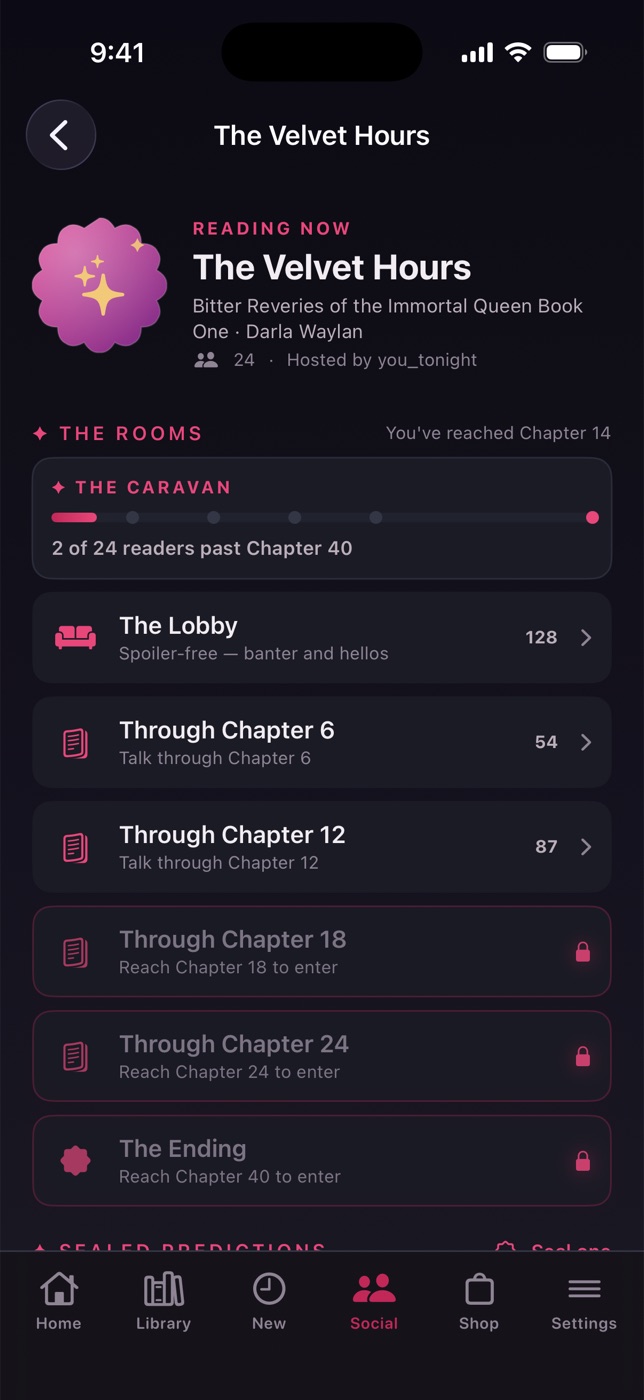
A club’s home page is a little world — rooms, a caravan, sealed predictions, and the roster.
- The Rooms — doors that open as you read to that chapter (with a little celebration when one does).
- The Caravan — how far the whole club has traveled together.
- Sealed Predictions — call what happens next; it stays in rose wax until the ending.
- The Roster — members and their host / co‑host roles.
- The Ending — when the book’s done: write a recap, and found the next club.
You can also mute a club or leave it anytime.
The conversation
Inside a room
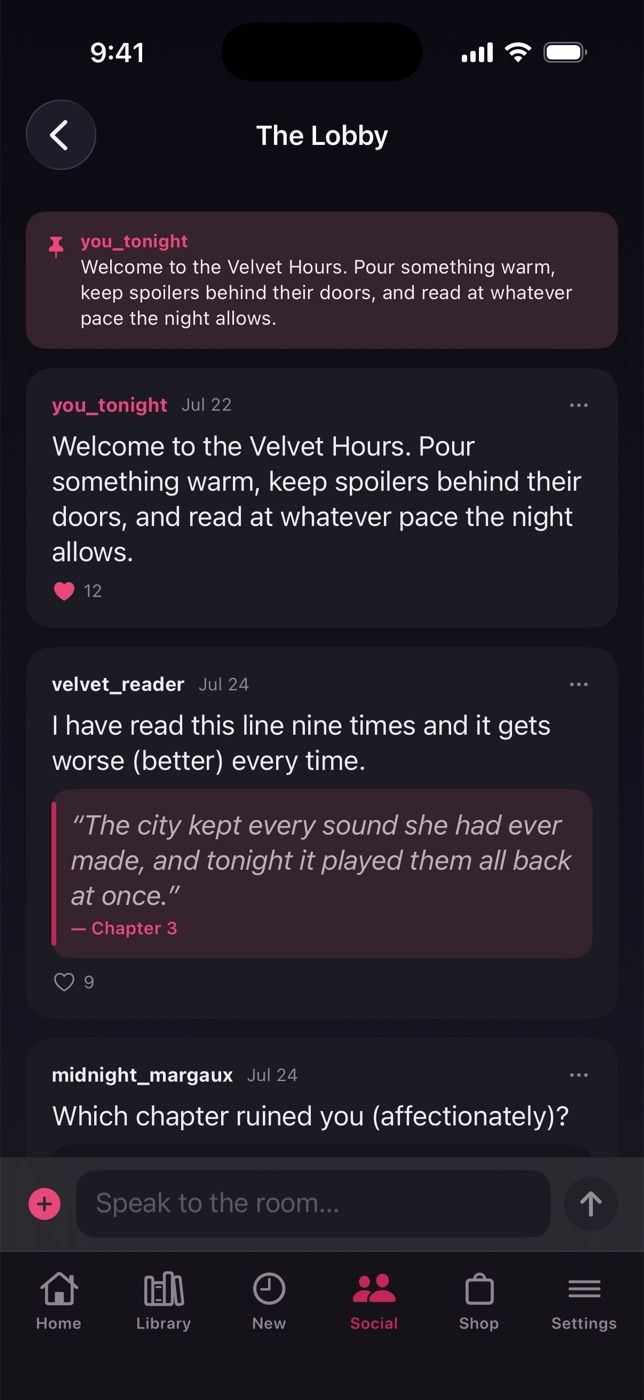
Each room is a chat about a stretch of the book — spoiler‑safe by design.
Send messages, heart and pin them, reply, and:
- Start a poll for the room to vote on,
- Seal a prediction in wax,
- and quote a passage — but only up to the room’s chapter and your own furthest‑read, so nothing spoils.
Meet up
Salons & the Stage
Clubs gather for scheduled events — including live listening parties on the Stage.
Hosts schedule salons: a discussion or a listening party, with a time and an opening chapter. Take a seat to RSVP and add it to your calendar. When it’s live, step onto the Stage — a podium the host speaks from (with short voice notes), attendee reactions, and, for listening parties, co‑listen that keeps everyone’s audio in sync.
On the web
Part X
Notifications & settings
Only the alerts you want, and every preference in one place.
Your inbox
Notifications
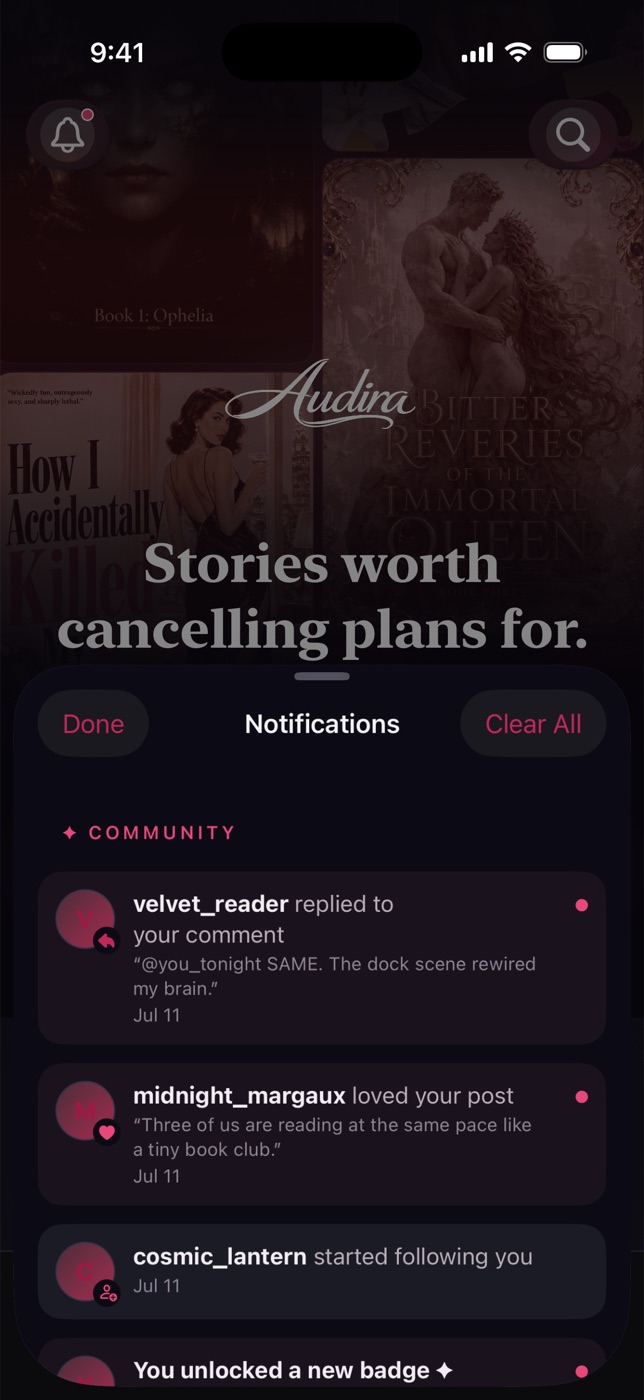
The bell up top gathers everything worth knowing — in two tidy sections.
- ✦ Community — follows, comments, replies, awards, achievement unlocks, club invites and more. Tap any avatar to open that reader.
- ✦ From Audira — house notes like a “Your shield stood guard” save, chapter unlocks, and new releases.
Swipe or tap the ✕ to clear one, or Clear All to sweep the From‑Audira notes at once. Opening the inbox marks everything read.
Tune it
Notification settings
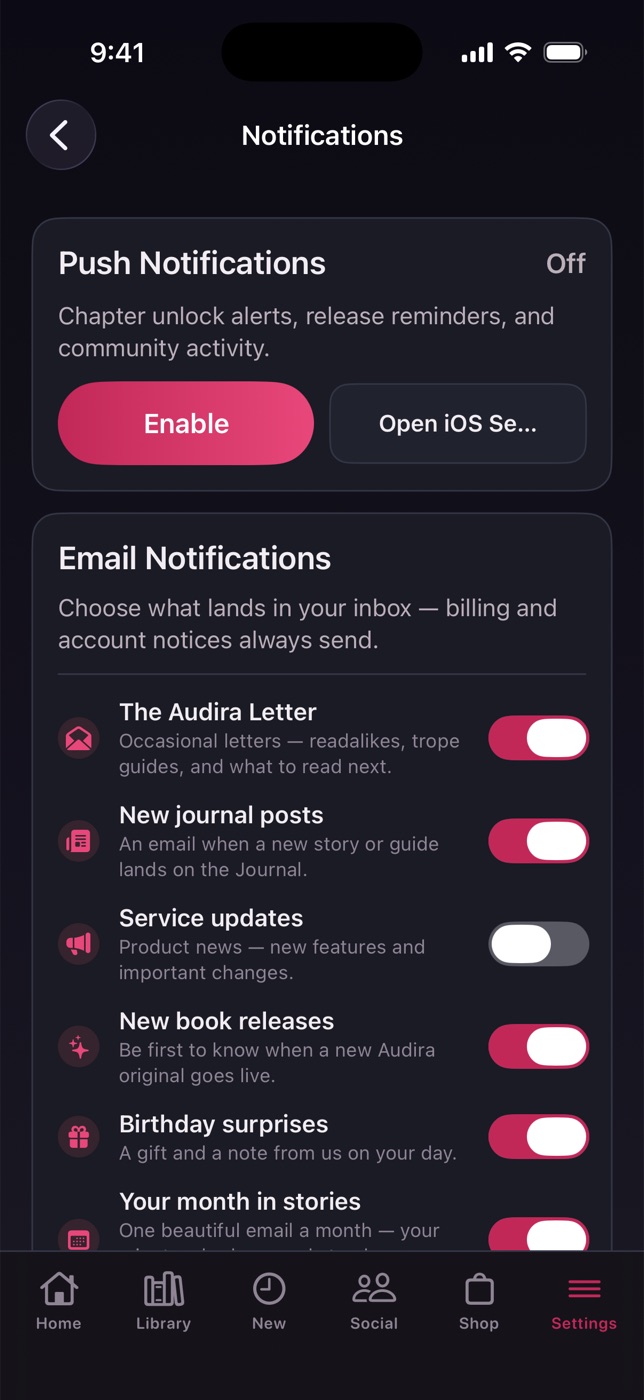
Decide exactly what reaches you — by push and by email.
In Settings → Notifications:
- Turn push on, and pick your community channels (new followers, comments, replies, loves).
- Choose your email topics: the Audira Letter, journal posts, service updates, new releases, birthday surprises, and your monthly recap.
- Set club channels (activity, salon reminders, prediction reveals) and reading reminders.
Always‑on
The back office
Settings
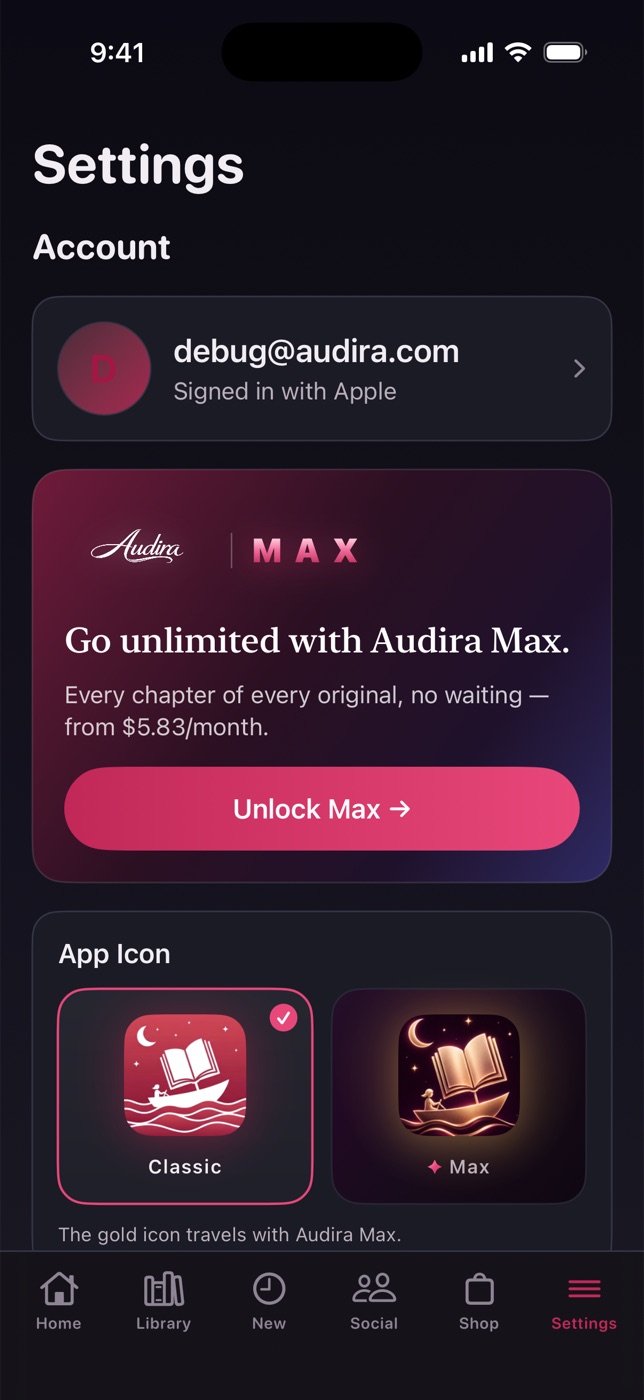
Your account, your membership, and every preference — gathered in one calm place.
Settings holds your account card, your Audira Max membership, the App Icon switch (Classic, or the gold Max icon), Promotion codes, Contact support, Appearance (System / Light / Dark), and — under About Audira — this guide and the Audira Journal.
You, on the record
Profile & account
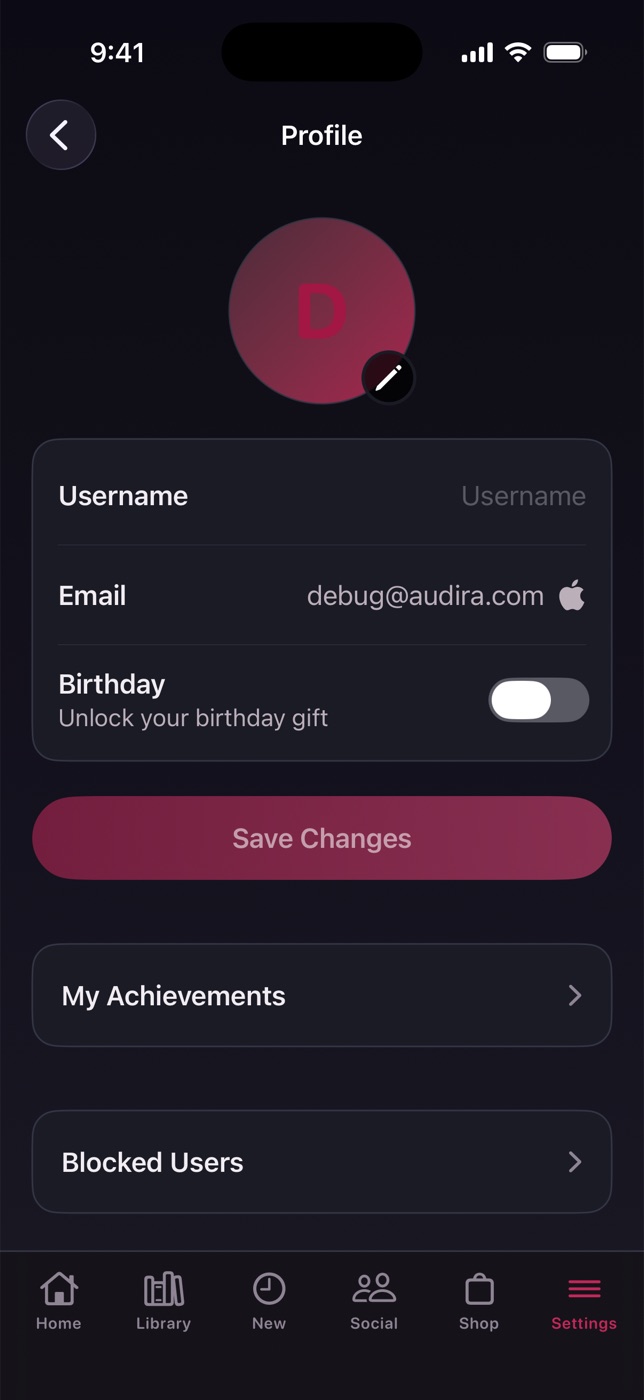
Your photo, your name, and the account controls that matter.
- Set an avatar (uploads may take a moment for a quick review) or remove it to go back to your generated one.
- Edit your username; your email is shown for reference.
- Add your birthday for a surprise on your day — note it’s set once.
- Jump to My Achievements and Blocked Users, log out, or delete your account (you’ll type “delete” to confirm).
What’s next
New & coming soon
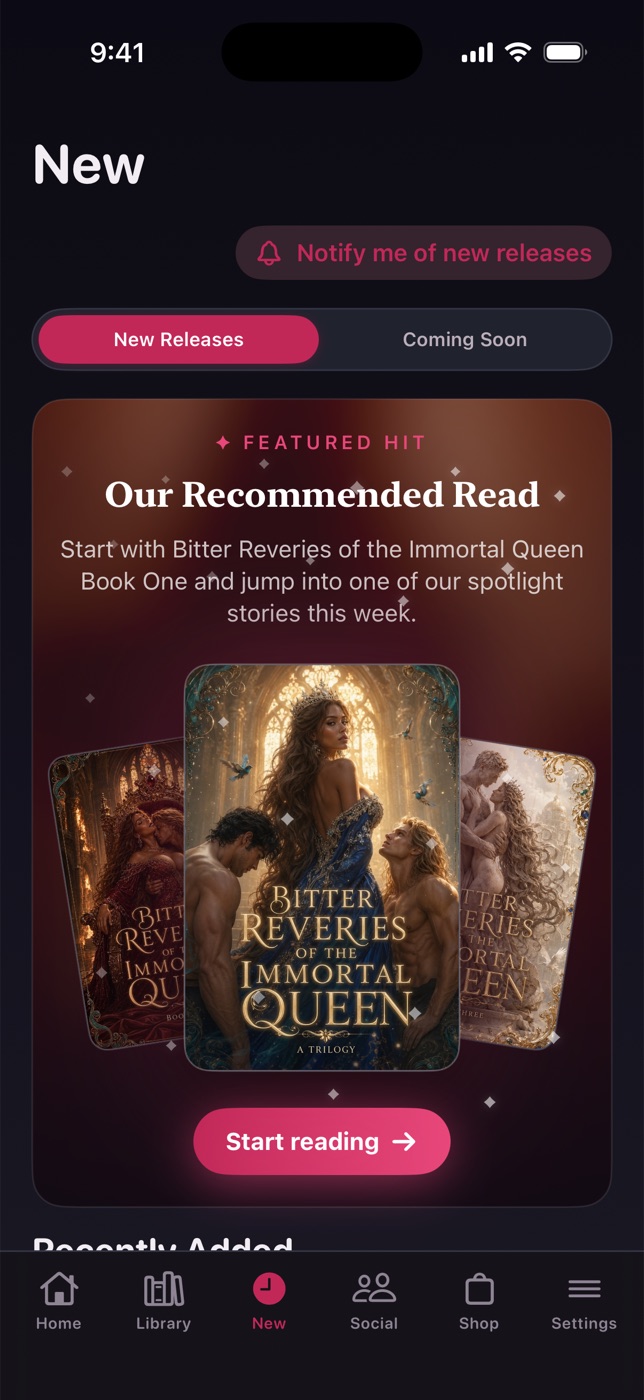
The New tab keeps you first in line.
New Releases leads with a featured premiere and a grid of the latest arrivals. Coming Soon lists what’s on the way — tap Notify me on any title (or the bell up top for all new releases) and we’ll tell you the moment it lands.
Part XI
On the web & help
Audira travels with you — and we’re here if you need us.
audirabook.com
On the web
Your account is one account. Sign in at audirabook.com and your library, progress, points, and membership are all right there.
The website mirrors the app for reading and listening, with a few web‑only touches:
- A browser reader and player with their own appearance settings,
- a resume bar that follows you across the site (and becomes a mini audio player),
- and the Audira Journal — our blog of guides, readalikes, and reader polls.
A handful of things are best in the app: live listening parties and the Stage, offline downloads, and the gold Max icon.
Little speed‑ups
Tips & shortcuts
A few moves that make Audira feel even faster.
| Where | Shortcut |
|---|---|
| Anywhere in the app | Re‑tap the current tab to jump to the top |
| The tab bar | ⌘1–⌘6 to switch tabs (with a keyboard) |
| The reader | ← / → change chapters · Esc closes menus |
| The player | Space play/pause · ← / → skip 15s |
| Any avatar or name | Tap it to open that reader’s profile |
| A book cover | Tap it for a full‑screen view — and save it to Photos |
Quick answers
FAQ
The questions we hear most.
Do points expire?
Never. They wait for you.
What happens when I finish my free unlocks for the day?
A chapter opens on a 5‑hour timer, or instantly for 10 points — or unlimited with Audira Max.
Is my place saved across devices?
Yes, on any device you’re signed in. Reading appearance settings are per‑device by design, so each screen can feel right.
Can I read on my computer?
Absolutely — sign in at audirabook.com and pick up right where you left off.
How do I cancel Max?
Anytime. If you subscribed in the app, manage it in the App Store or Google Play; on the web, through your billing portal in Settings.
We’re here
Get help
Something not right, or just a question? We read every message.
Open Settings → Contact support (or the Support page on the web) and tell us what’s going on — you can attach a screenshot, which always helps. We’ll reply by email. Welcome to Audira. Now — go read something wonderful. ✦